

Replays Block
The component that shows past replays on your live shopping page. Customers tap a thumbnail and shop while they watch.
Add it to the page
Section titled “Add it to the page”Like the events component, you add this one to your store theme by hand. It is the other half of setup checklist step 2.
Shopify
Section titled “Shopify”- Click Go to the Theme Editor on step 2 of the setup checklist.
- Add the Replays Block to the live shopping page.
- Adjust the styling below as needed.
- Save the theme.
MaxxShow detects it and ticks that checklist step. The step needs both components before it counts as done.
What customers see
Section titled “What customers see”Replays sit in thumbnail cards, laid out as a carousel by default. Tapping one opens the replay player, where products stay shoppable.
The component shows replays set to display and not archived. You choose which ones appear, and in what order, on the live shopping page admin. See Reorder events and replays.
What you can adjust
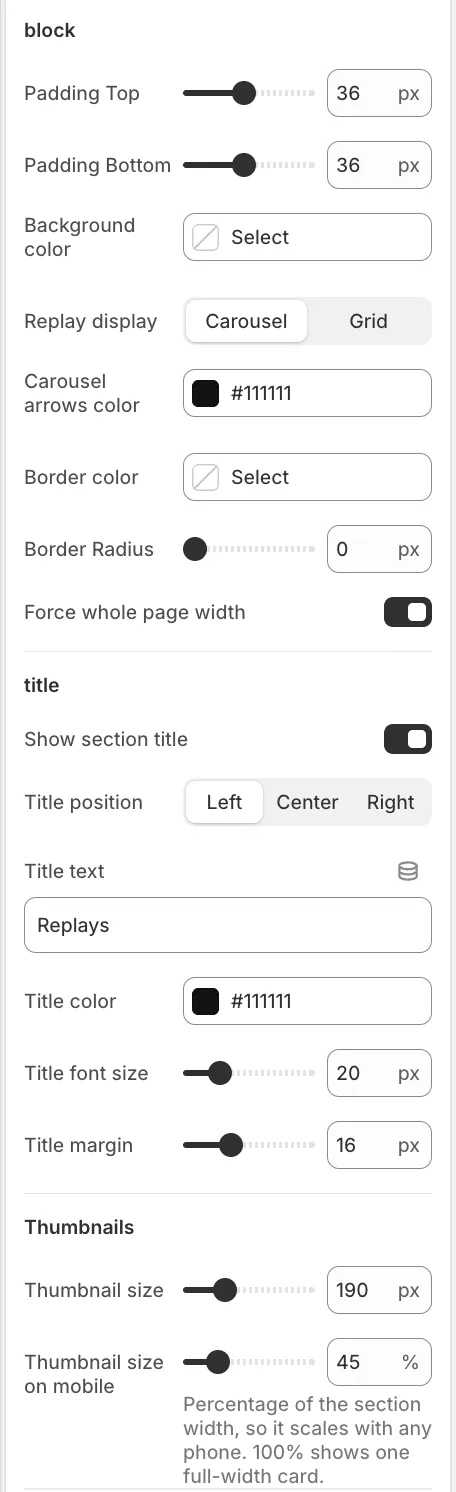
Section titled “What you can adjust”Two layouts, carousel and grid. A carousel is one horizontal row that slides, and takes little space. A grid lays replays out flat and fits more on screen. Switch under Replay display.
The rest:
- The block itself — Padding Top and Padding Bottom, Background color, Border color, Border Radius, Force whole page width, and Carousel arrows color.
- The section title — Show section title, Title text, Title position, Title color, Title font size, and the space below it.
- Thumbnail size — pixels on desktop, a percentage of block width on mobile. Set mobile to 100% for one full-width card per screen.