What's on the home page
The home page is where you land after installing MaxxShow. It puts what you need to do next next to where you currently stand, in six cards from top to bottom.
Setup checklist
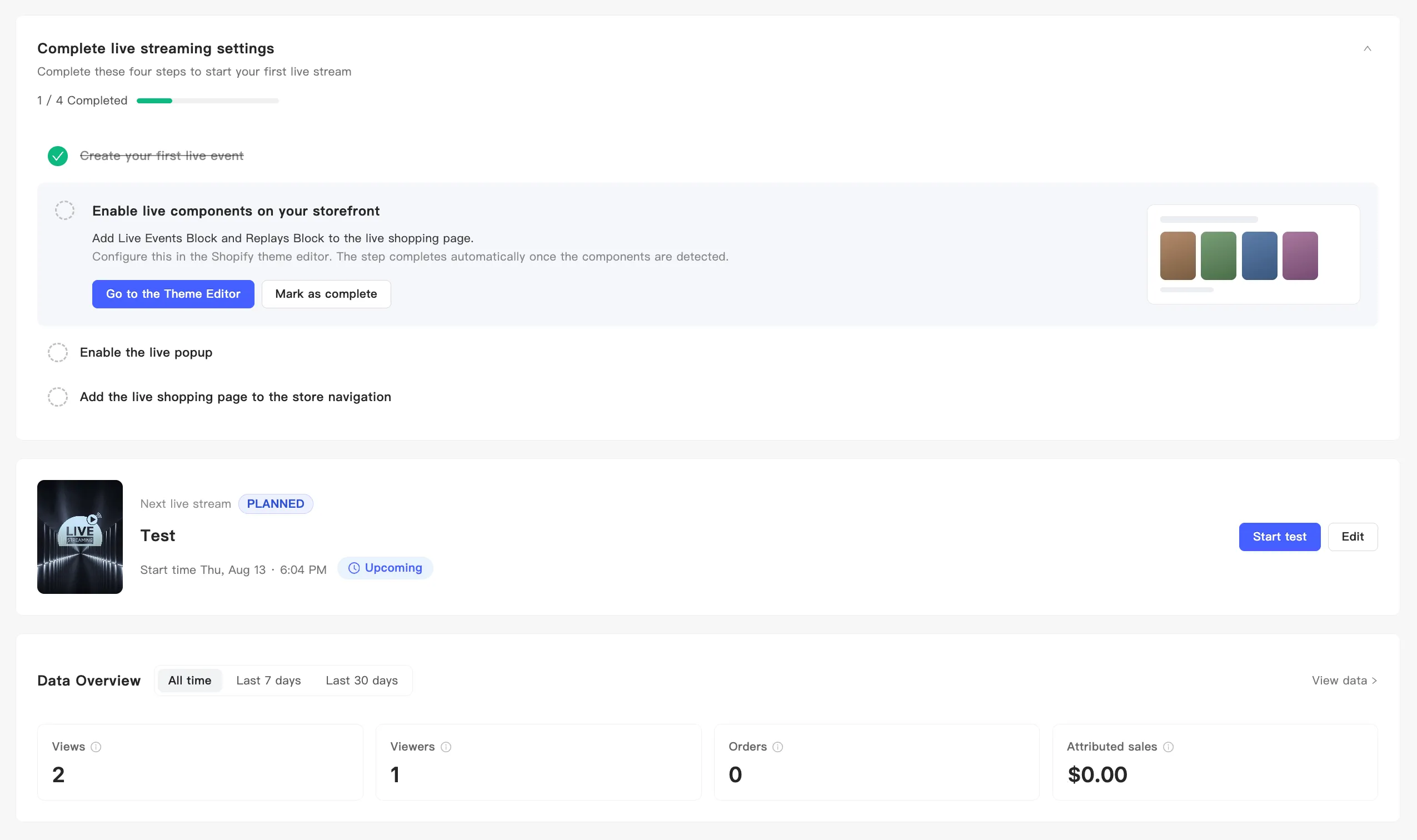
Section titled “Setup checklist”On a fresh install, the checklist sits at the top. Work through the four steps before you can broadcast. See Complete the setup checklist.
Live status card
Section titled “Live status card”This card tracks the event closest to now, and changes with its state:
- Nothing scheduled — the card tells you nothing is on the schedule and offers a button to create an event. If you have not finished the setup checklist, it points you at creating your first event instead.
- Scheduled — you get the cover, title, and start time, plus a chip showing its broadcast status. The buttons are Start test and Edit.
- Running — the card marks the event as live or testing, and the button becomes the one that opens the live manager.
When several events run at once, the card notes how many others are in progress and links you to the events page for the rest.
Data overview
Section titled “Data overview”Four numbers: Views, Viewers, Orders, and Attributed sales. This card counts live streams and replays together. It also deduplicates audience and visitor figures across both.
The segmented control switches the period: All time, Last 7 days, Last 30 days. View data on the right opens analytics. See Analytics overview.
How many viewer minutes and Live Credits you have left, and whether auto-recharge is on. See Viewer minutes and Live Credits.
Component activation status
Section titled “Component activation status”Whether the three display components are live in your store theme. Come back here after switching themes. See Check component activation status.
Recent replays
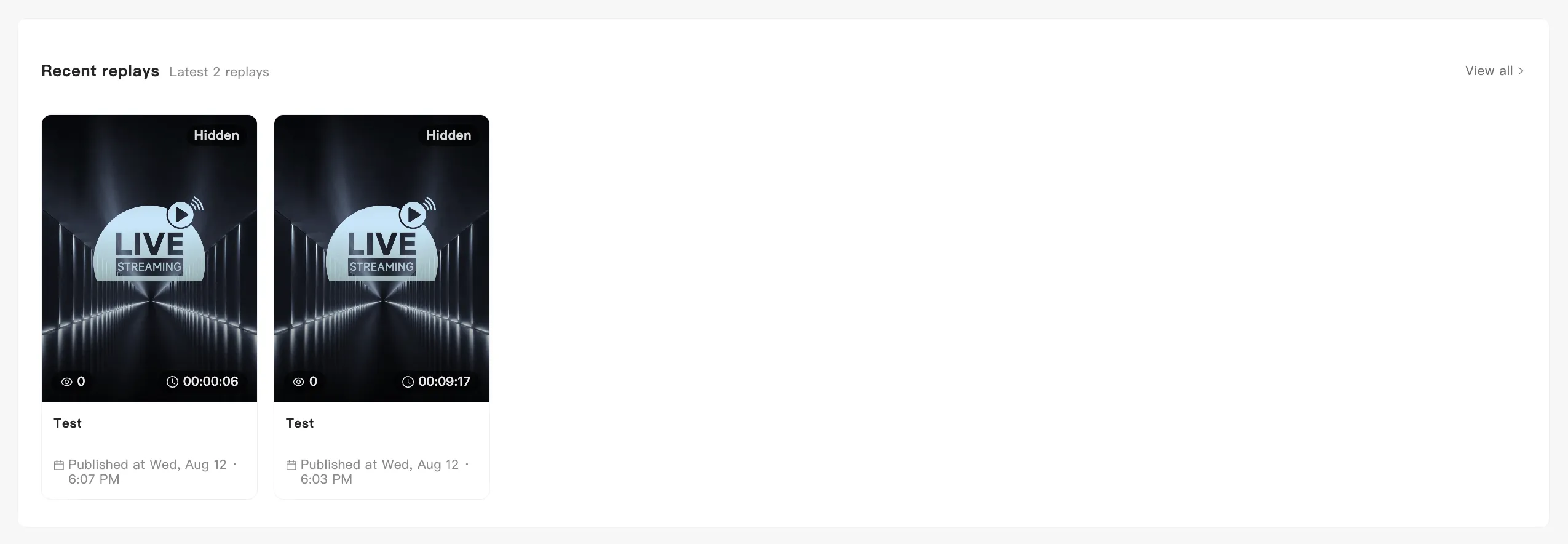
Section titled “Recent replays”Up to six replays, with the current count next to the title. Each card carries a status badge, views, duration, title, and the Published at time.
View all on the right opens replay management. See Manage replays.