Set up chat and the welcome message
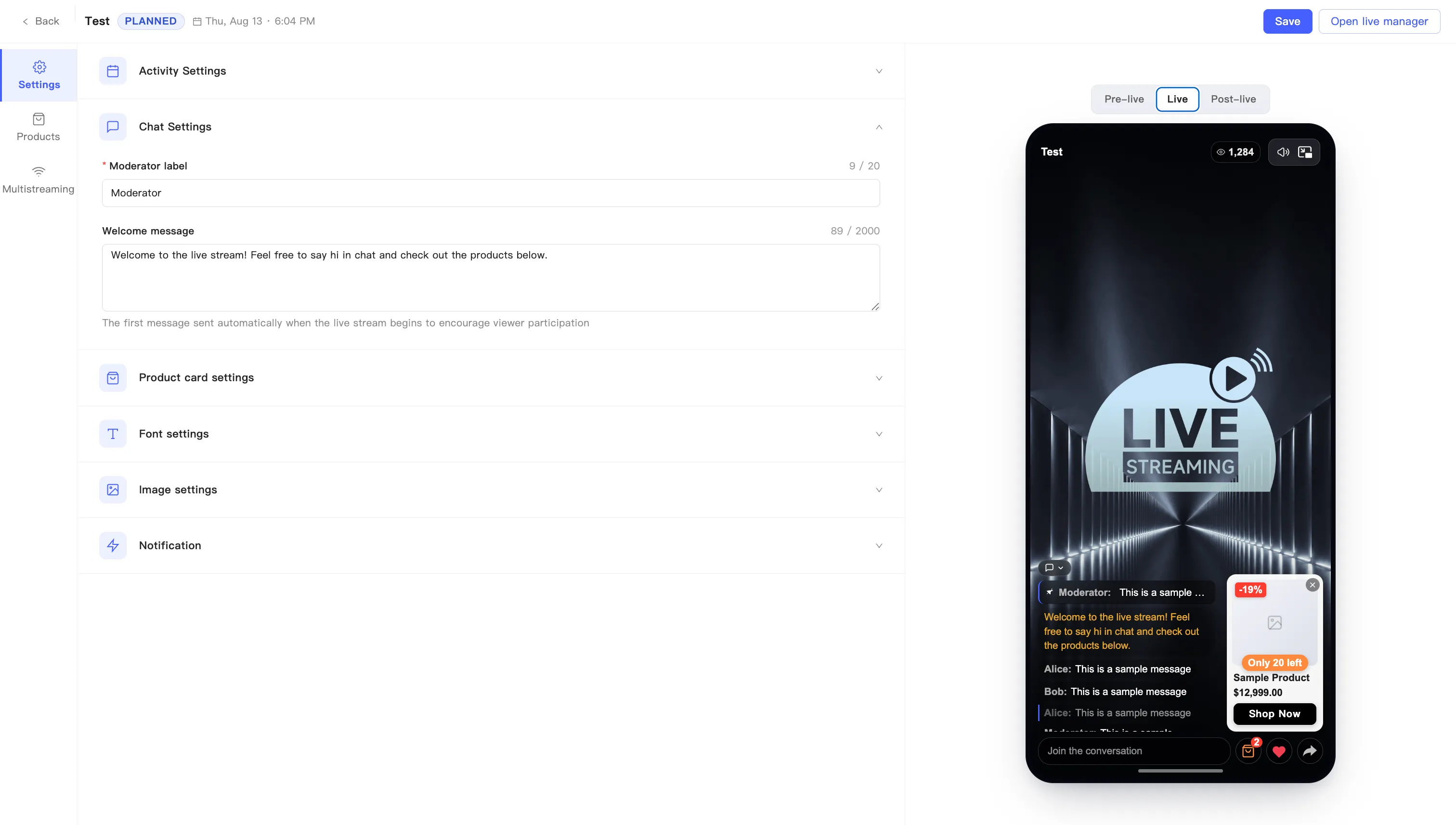
Chat Settings controls the badge next to the host’s messages and the first message the room sends when the broadcast opens.
- On the event editing page, stay on the Settings tab and expand Chat Settings.
- Fill in Moderator label. Required, up to 20 characters. The badge sits next to the host’s messages so viewers can tell them apart from the crowd.
- Fill in Welcome message. Up to 2000 characters. The room sends it as the first message when the broadcast opens, to get viewers talking.
- Click Save at the top right.