

Orders
The Orders tab lists every order attributed to a broadcast or a replay, one by one. Come here to check how a particular order counted as live revenue.
How to read the table
Section titled “How to read the table”One order can span several rows. The table breaks out by product line: each attributed product gets its own row with its own attribution type and source. Purchase date, order ID, customer, and order status belong to the whole order. Those four merge into one cell spanning the rows.
| Column | Contents |
|---|---|
| Purchase Date | When the order was placed |
| Order ID | The order number in your store. The arrow icon opens the original order in your store admin |
| Customer | Email and phone |
| Products | Product name and SKU |
| Quantity | How many of this product |
| Unit price | Price per unit |
| Discount | The discount on this line, or a dash if there is none |
| Attribution type | In-stream, Post-stream, Live assisted, In-replay, Post-replay, or Replay assisted |
| Source | Which broadcast or replay it came from |
| Attributed sales | What this line contributes, after the discount |
| Order Status | Payment status |
Products within one order can carry different attribution types. The item you showed on stream counts as inside the broadcast, while something else they added counts as indirect. For what each type means, see Attribution rules.
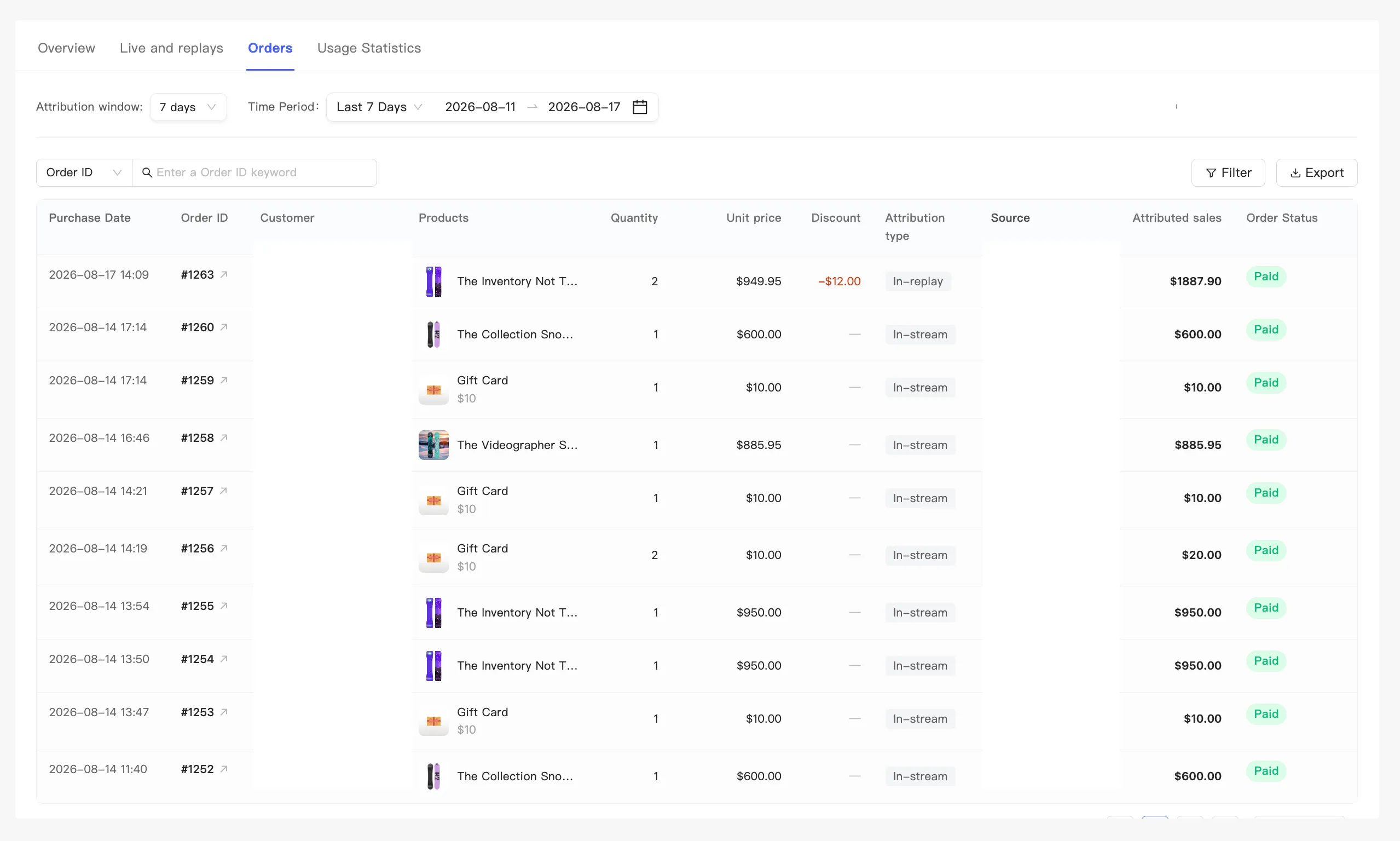
Find a particular order
Section titled “Find a particular order”Search — pick what to search on to the left of the box, then type. It matches on substrings. You can search order ID, product name, SKU, email, phone, or source. One dimension at a time, so change the dropdown to change dimensions.
Filter — Filter opens a panel with two groups of conditions, both multi-select:
- Attribution type — split into live and replay, three each: inside, outside, and indirect. Click a group heading to select or clear that whole group.
- Order Status — Paid, Pending Payment, Authorized, Partially paid, Partially refunded, Refunded, and Voided.
Your active conditions appear as tags under the toolbar. Remove one with its cross, or Clear to drop them all. The number on the Filter button is how many conditions are active. Filter down to nothing and the table tells you so.
The two groups work at different levels. Order status filters whole orders. Attribution type filters product rows. Filter by live-inside and you keep only the product rows attributed that way, while other rows in the same order disappear.
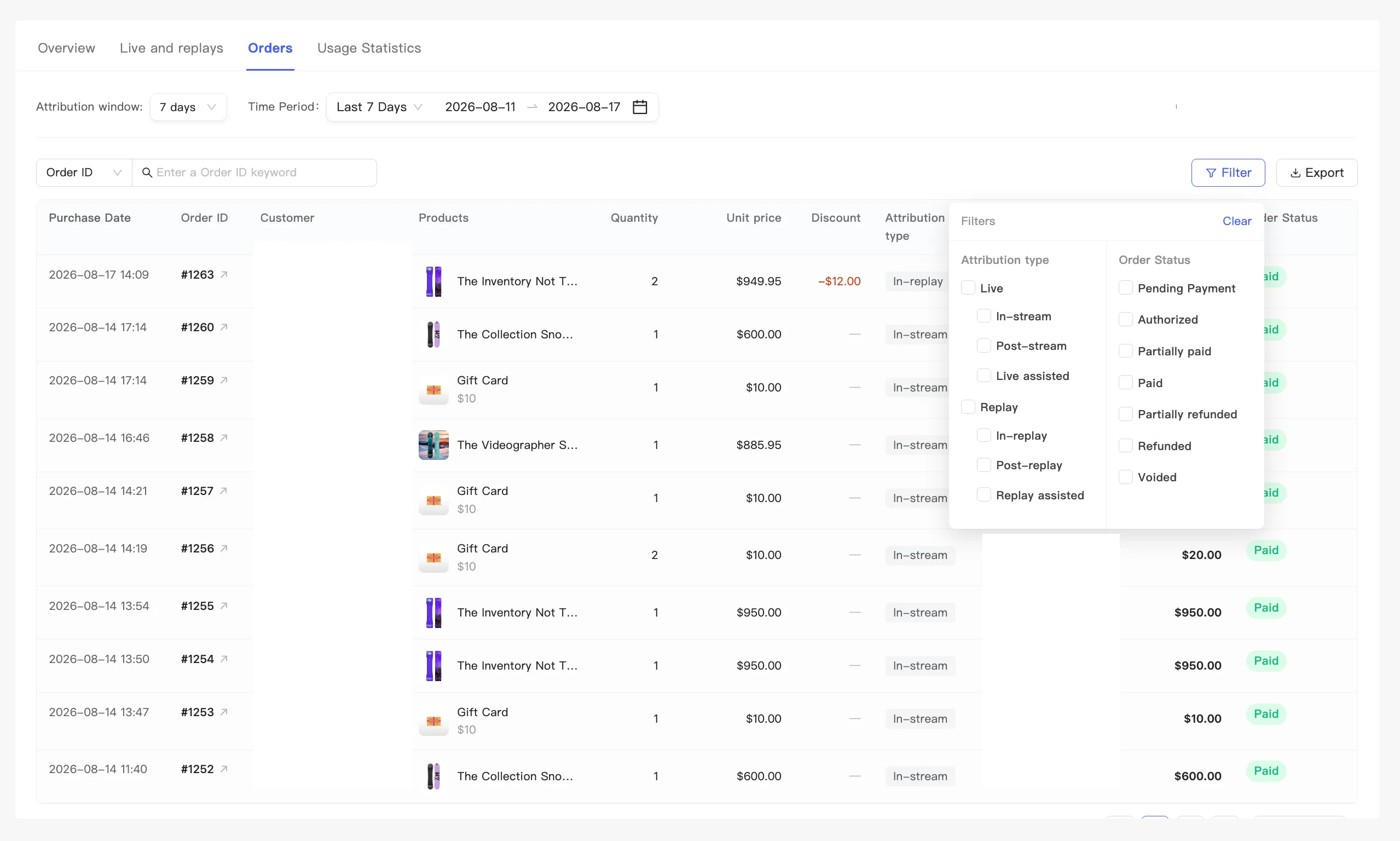
Paging and export
Section titled “Paging and export”The bottom left of the table gives the total number of orders, counting orders rather than rows. On the right, set 10, 20, or 50 per page and move between pages.
The toolbar has an export button on the right. See Export data.