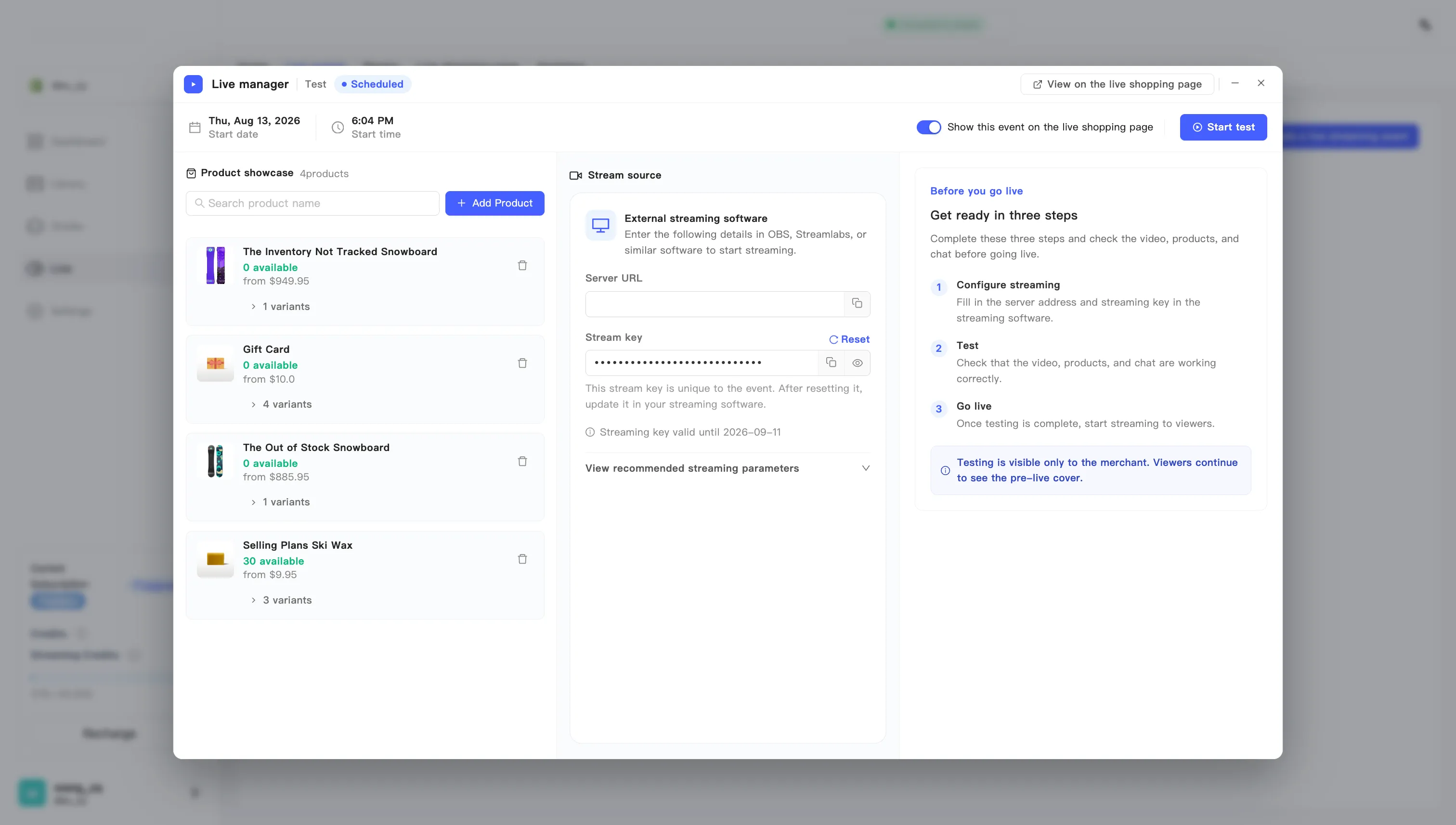
Reset the stream key
A stream key has an expiry, and you can replace it whenever you want. A leaked key, a change of who runs the stream, an approaching expiry — all take the same action. The old key dies immediately.
- Open the live manager for this event and find Stream key under Stream source.
- Click Reset at the right of that row.
- Confirm in the Reset streaming key? dialog by clicking Confirm reset. The field fills with a new key.
- Copy the new key and replace the old one in your encoder.
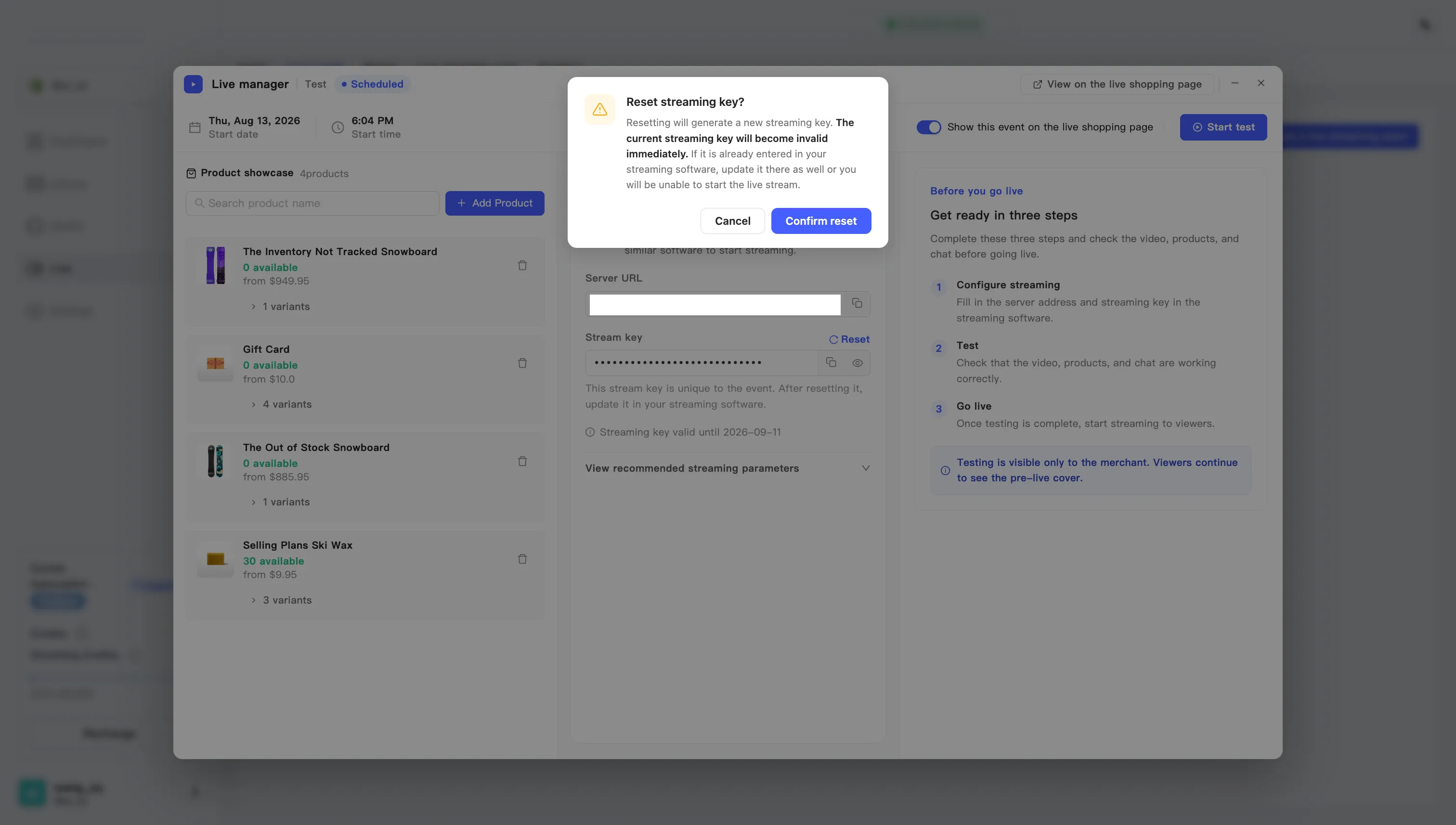
A standing reminder sits under the key field:
This stream key is unique to the event. After resetting it, update it in your streaming software.
Key expiry
Section titled “Key expiry”A line under the key field reads Streaming key valid until and then the date. It applies to the key you hold now. Normally you can ignore it, because MaxxShow renews keys on a schedule.
Within three days of expiry, that line turns into a warning. It recommends resetting before you go on air rather than mid-broadcast, because changing the key during a broadcast cuts off the people watching.
When you see it, reset once using the steps above and update your encoder. Do it before you go on air.