Notification settings
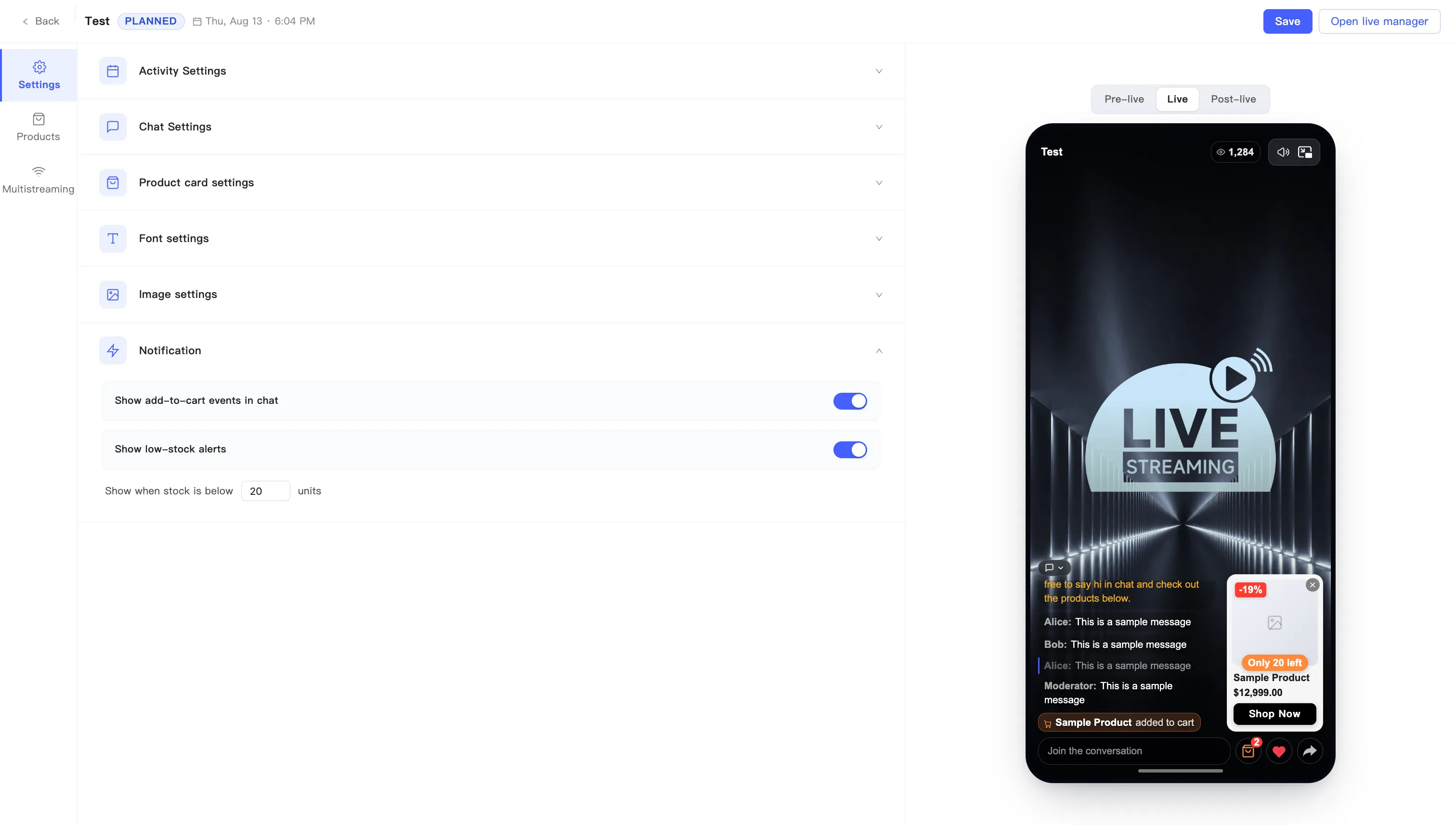
Notification covers the live prompts viewers see in the room. Two of them: whether other people’s add-to-cart actions reach chat, and whether product cards show stock.
-
On the event editing page, stay on the Settings tab and expand Notification.
-
Turn on what you want:
Toggle Default What it does Show add-to-cart events in chat Off Chat posts a line whenever a viewer adds to cart Show low-stock alerts Off Product cards show remaining stock -
Turning on low-stock alerts reveals a Show when stock is below … units row. Set your own threshold. The default is 20.
-
Click Save at the top right.
With both on, viewers see two changes:
- Chat posts a line when someone adds an item to their cart.
- Product cards carry a badge with the remaining stock.