

Export data
Exporting runs as a background task. Clicking export does not download a file. It queues a job you collect later.
Where you can export
Section titled “Where you can export”| Location | What it exports |
|---|---|
| Analytics → Overview → key metrics | The metrics currently on show |
| Analytics → Live streaming and replay → Performance → key metrics | The same, narrowed to live or replay |
| Analytics → Live streaming and replay → Details | The per-session or per-replay table |
| Analytics → order | The order list. See Orders |
| Analytics → Usage Statistics | Quota consumption and top-up records. See Consumption and top-up records |
| Single session data → product list | Per-product performance for that broadcast. See Single session data |
| Replay detail → product list | Per-product performance for that replay. See Single replay data |
Key metrics, orders, and usage give you a labelled export button. The two product lists use a download icon in the toolbar.
The events list also exports the notification subscriber list, which does not live under analytics. See Export the notification subscriber list.
After you export
Section titled “After you export”Clicking export puts a confirmation at the top of the page telling you the task was submitted and to check your export records later.
The job runs in the background, so you do not have to wait on the page. Collect the file under User center → Export task. Exports come out as Excel.
Each row in the list is one task, with its File name, Type, Time, Exporter, and Progress. While progress reads Exporting, Download stays greyed out. It becomes available once the export succeeds.
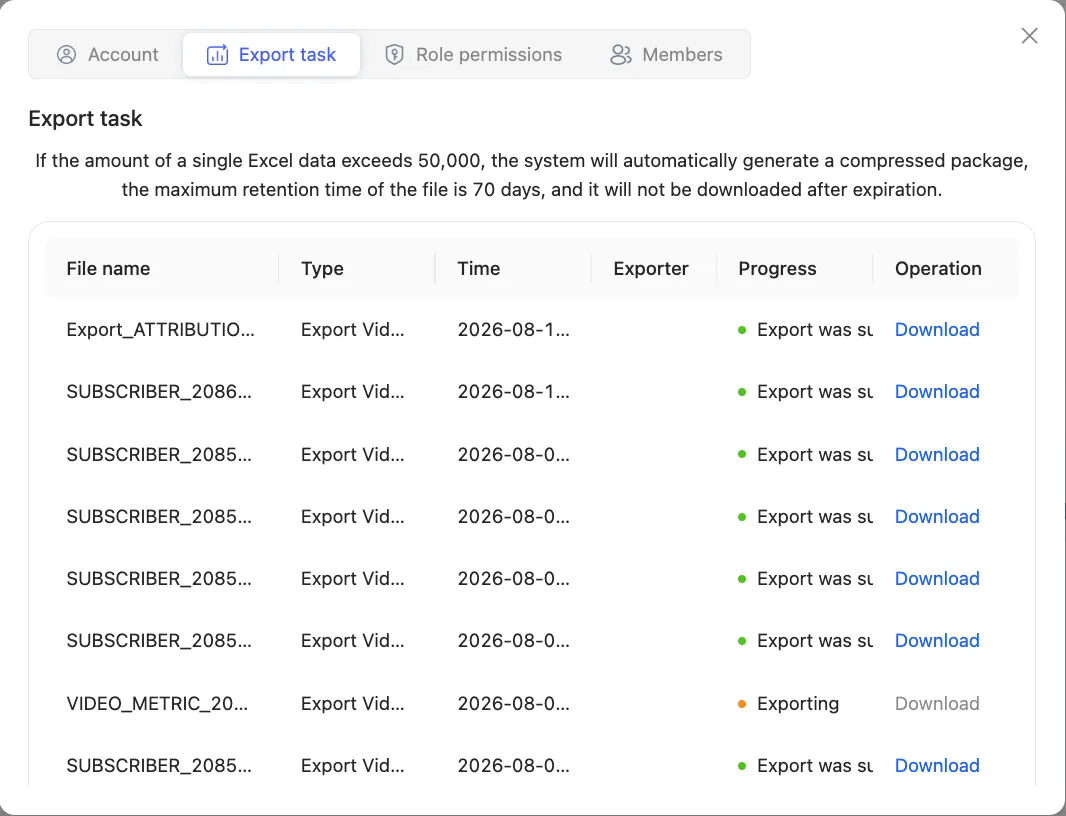
Files last 70 days, then they stop downloading. Keep your own copy of anything you need long term.
A single export over 50,000 rows arrives as a compressed package.
Exports follow the filters you have set. To export one period or one type, filter the page first, then export.