

Push products during a live
Whatever you are talking about, push it. The product card pops up on the viewer’s side the moment you do.
- Product showcase on the left of the live manager holds every product in this broadcast.
- Find the one you are about to cover and click Show.
- It switches to On display, and viewers get its product card. Chat posts a system message naming the product you pushed.
- Moving on? Click Show on the next product.
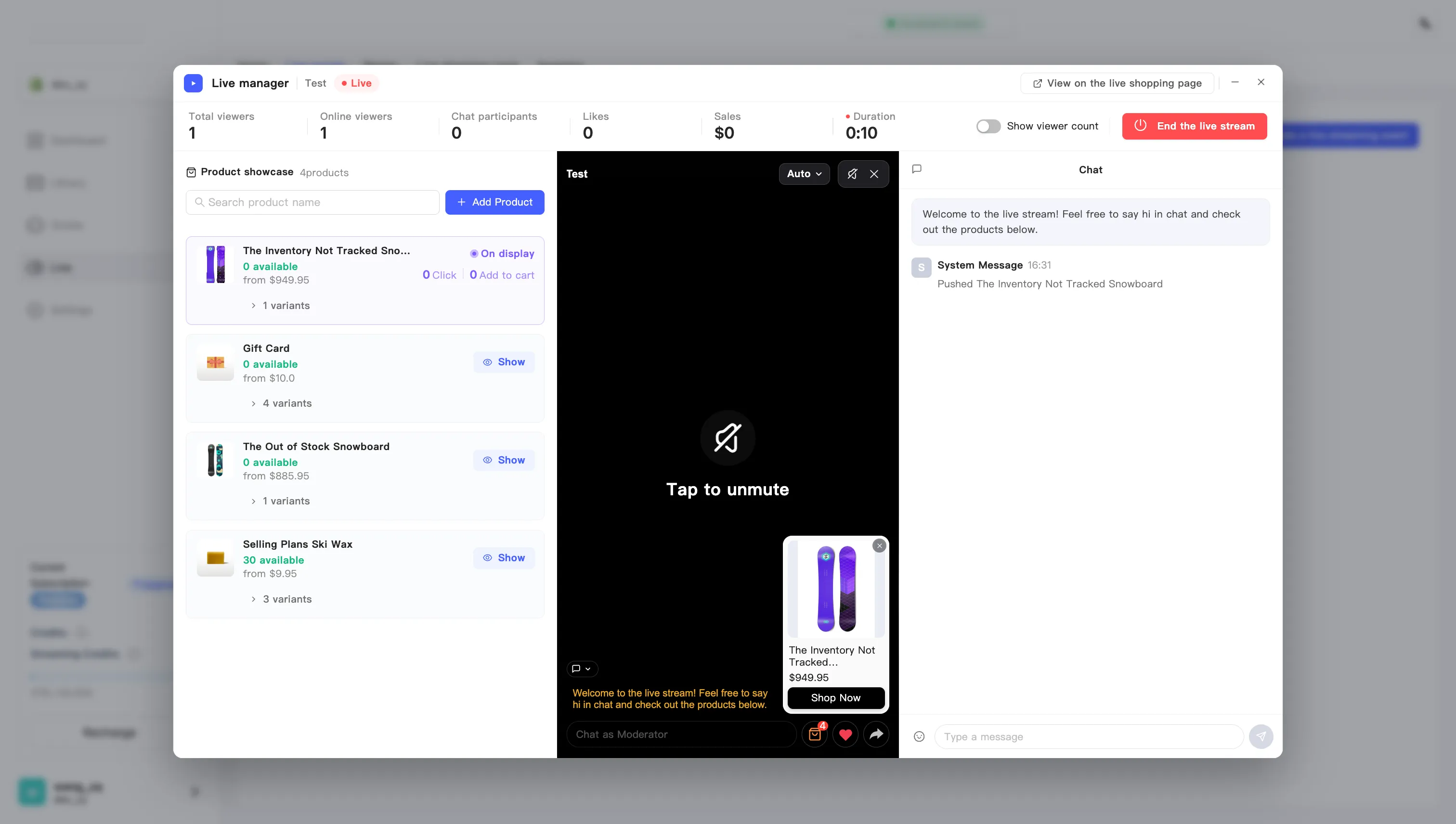
The three states of a product
Section titled “The three states of a product”While you are live, every product in the panel sits in one of three states:
| State | What you see | Meaning |
|---|---|---|
| Not yet pushed | A Show button | You have not pushed it this session |
| Pushing now | On display, with live click and cart counts | Its card is up on the viewer’s side |
| Already pushed | Displayed, which turns into Show again on hover | Pushed earlier, not up now, and you can push it again |
Two numbers tick next to the product on display: Click and Add to cart. That is your audience reacting in real time, and it tells you whether to keep talking about this one.
What the panel looks like in other states
Section titled “What the panel looks like in other states”The panel stays on the left the whole time, but the right of each row follows the event state:
- Planned — each row has a remove button and no Display button. Here the panel is for checking your product list. Pushing waits for test or live.
- Testing or live — the three states above, and you can push.
- Ended — each row shows this session’s final numbers: clicks, adds to cart, and orders.
Remove a product from this broadcast
Section titled “Remove a product from this broadcast”Only while the event is planned. Click the remove button at the right of the row. The confirmation tells you the product leaves the panel and that you can add it back at any time, so this one is not scary.
Once you are on air the button is gone, and you cannot change the product list.