

Test and rehearse before going live
A test broadcast is a full rehearsal. Video, products, chat, and checkout all run, but your audience sees none of it.
The three steps before broadcasting
Section titled “The three steps before broadcasting”While the event has not started, the right side of the live manager lays out three steps:
- Configure streaming — put the Server URL and stream key into your encoder.
- Test — check that video, products, and chat all behave.
- Go live — open the broadcast to your audience once the test passes.
During the testing phase only you can see the stream. Viewers still get the pre-broadcast cover. Nothing you rehearse leaks out.
Start a test
Section titled “Start a test”- Open the live manager for this event.
- Start your encoder first. See Stream with OBS or another encoder.
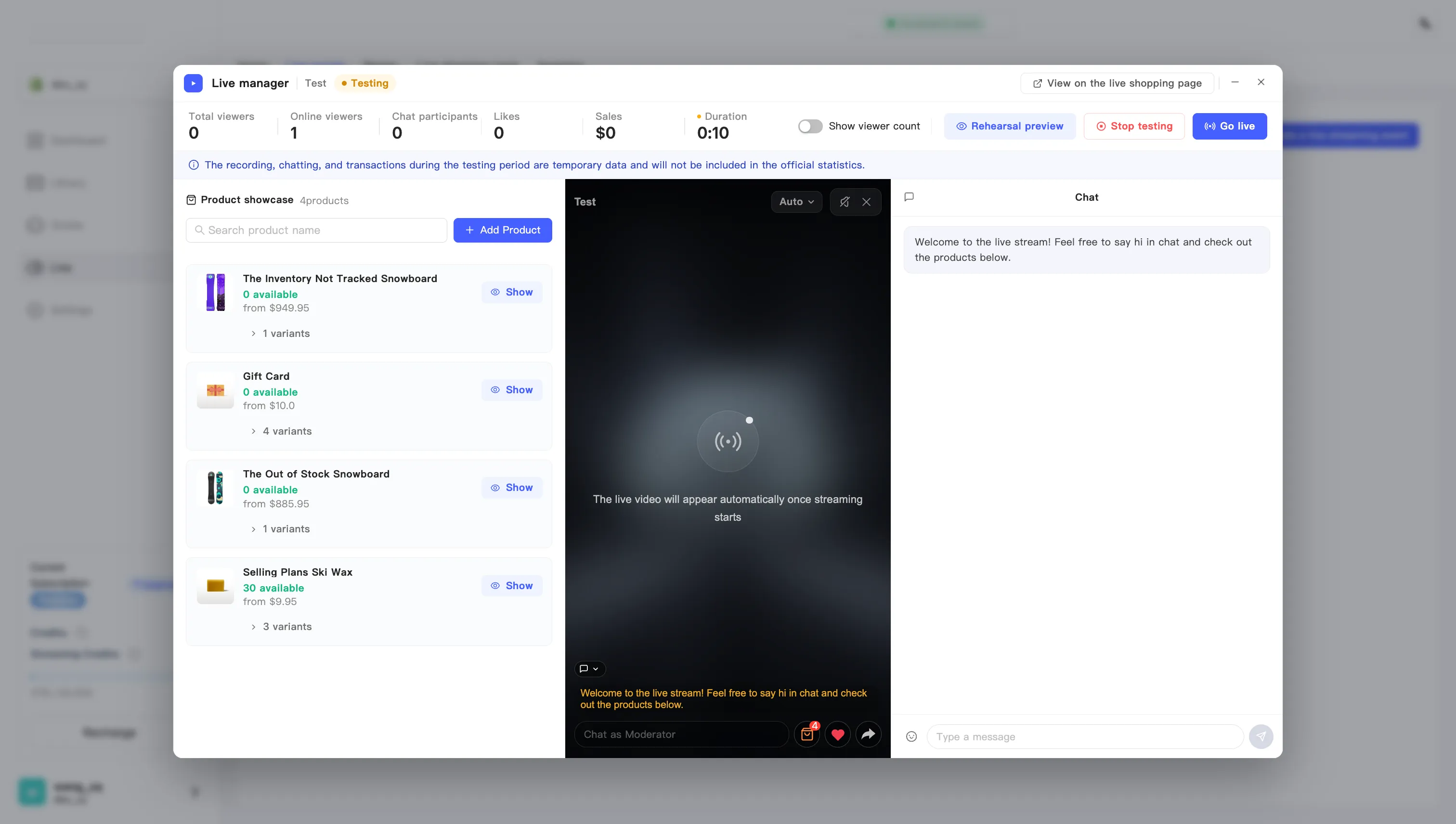
- Click Start test. The event moves from planned to Testing.
- Work down the list: video and audio, pushing a product from the product panel, sending a chat message.
Rehearsal preview: see the viewer’s side on a phone
Section titled “Rehearsal preview: see the viewer’s side on a phone”The manager shows you your own view. To see what your audience gets, use Rehearsal preview:
- While testing, click Rehearsal preview at the top.
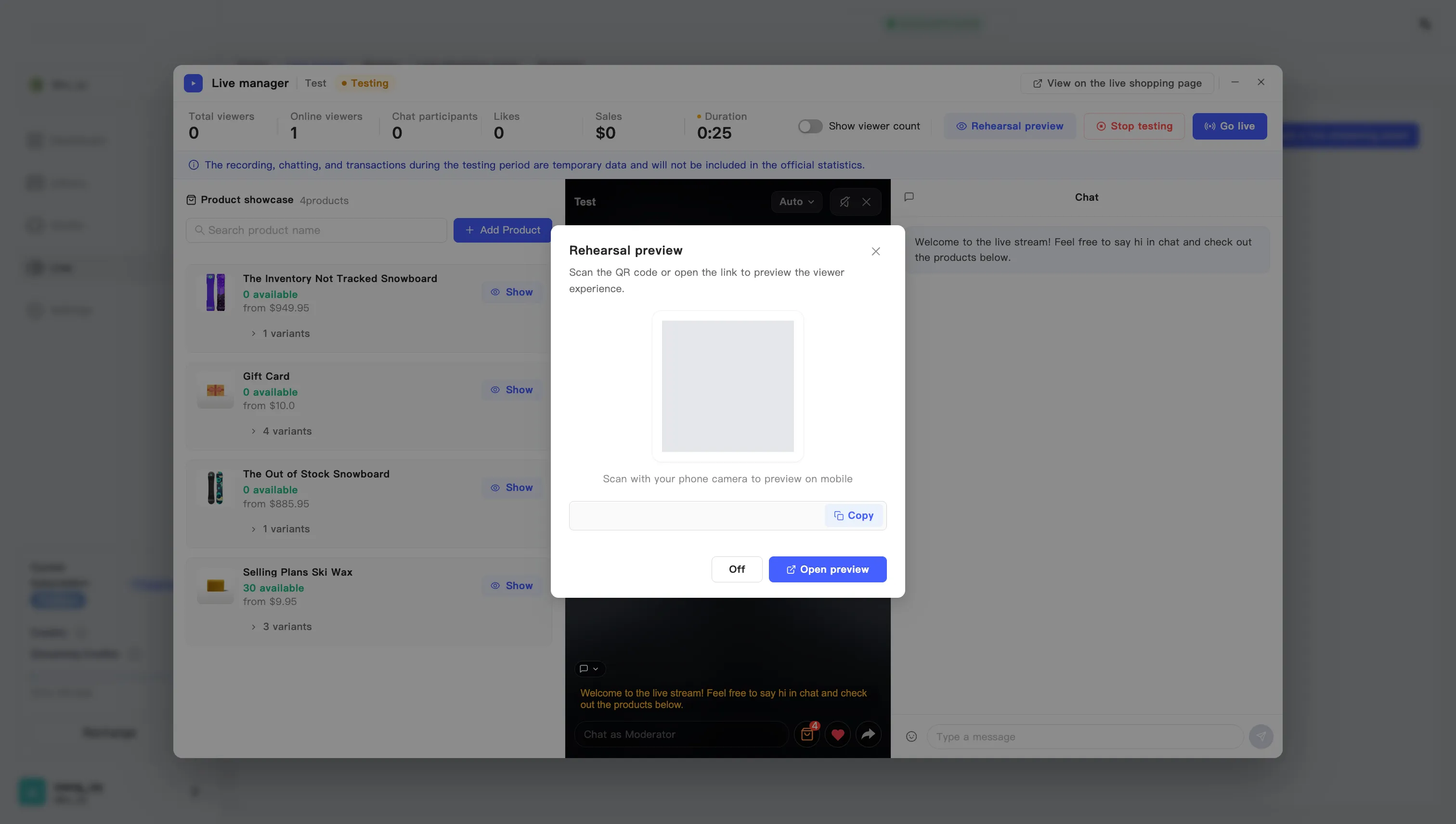
- The dialog holds a QR code and a preview link to the visitor’s live room.
- Scan the code with your phone camera to preview it there. You can also copy the link or open it in a new tab.
- Click Off when you are done.
The viewer’s side is vertical and mobile first, so check it on a phone. Product card styling, button copy, and cover images all deserve a look here before you go public.
End a test
Section titled “End a test”Two ways out:
- Go public and start the real broadcast. See Go live.
- Click Stop testing to drop back to planned, fix what you found, and test again.